1
Starting input
Browser generation
Text prompts, reference images, or both can define the first direction.
Traditional desktop modeling
A blank scene, imported reference, or manually built primitive set.
Browser 3D workflow
Meshy AI brings text-to-3D and image-to-3D generation into a browser-based workspace. Use meshy ai online to test ideas quickly, inspect the result, and decide what deserves a deeper modeling pass.
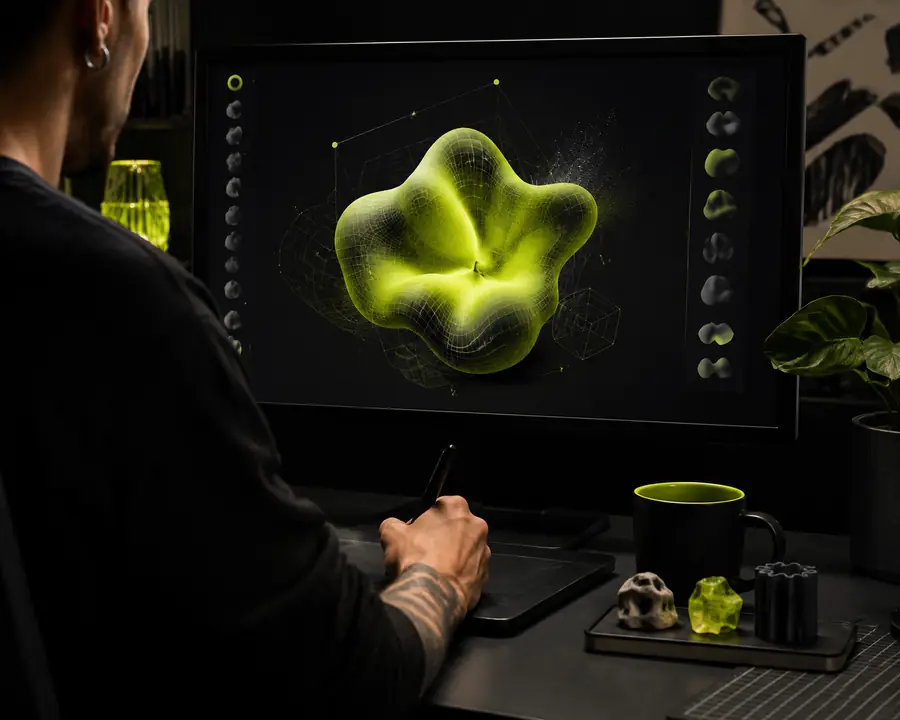
Surface comparison
Meshy AI is most useful when the generation surface matches the job. This comparison shows where a browser session is strong and where a dedicated desktop tool still has an edge.
Browser generation
Text prompts, reference images, or both can define the first direction.
Traditional desktop modeling
A blank scene, imported reference, or manually built primitive set.
Browser generation
Generate several visual directions before committing to detailed work.
Traditional desktop modeling
Iteration depends on hands-on edits, modifiers, and repeated scene changes.
Browser generation
High-level control through prompts, references, and generation settings.
Traditional desktop modeling
Fine-grained control over topology, proportions, edge flow, and scene structure.
Browser generation
Concept exploration, rough asset production, and visual prototyping.
Traditional desktop modeling
Production modeling where exact geometry and art direction are essential.
Browser generation
Accessible to designers, creators, and teams testing a 3D idea.
Traditional desktop modeling
Usually requires familiarity with a modeling package and its workflows.
Browser generation
Share a generated direction quickly for feedback before investing more time.
Traditional desktop modeling
Review often happens after a longer manual modeling pass.
Browser generation
Useful as a starting asset that may need cleanup or retopology.
Traditional desktop modeling
Better suited to precise final adjustments and technically constrained deliverables.
Browser generation
A rapid front end for exploring forms, styles, and usable starting meshes.
Traditional desktop modeling
A complementary environment for polishing, rigging, simulation, or exact delivery.
Practical audiences
Different users approach Meshy AI with different constraints, but the common benefit is a shorter distance between an idea and something concrete to review.
A solo developer needs background props, collectible objects, or enemy concepts before the art direction is fully settled.
Meshy AI provides several visual starting points that can be evaluated in the game context before detailed production begins.
meshy ai examplesA designer wants to test the silhouette and presentation of a product concept without waiting for a full CAD or sculpting pass.
Meshy AI helps turn a sketch or description into a reviewable 3D reference for conversations with teammates and clients.
meshy ai for 3d modelingA new creator understands the object they want but is still learning topology, camera setup, and modeling software.
Meshy AI lowers the cost of the first experiment and makes it easier to learn by inspecting a generated result.
what is meshy aiA small studio needs to compare multiple visual directions for a scene, campaign, or interactive prototype.
Meshy AI gives the team a shared object to annotate, reject, revise, or carry into a more controlled production workflow.
how to use meshy aiQuality checkpoint
A generated model can be valuable without being finished. Treat the first output as a directional asset, then inspect it against the needs of your project.
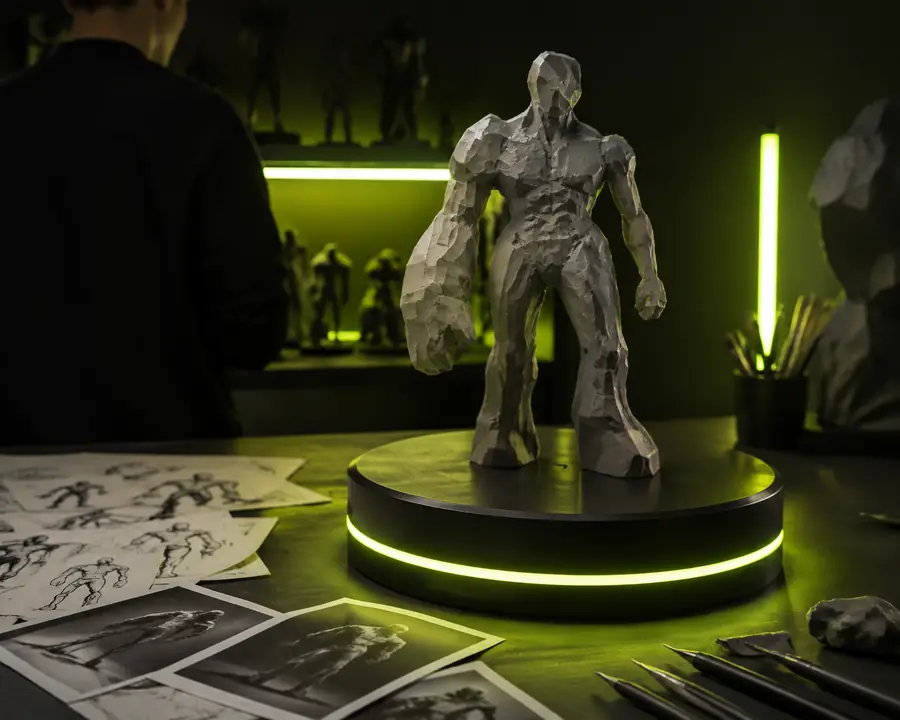
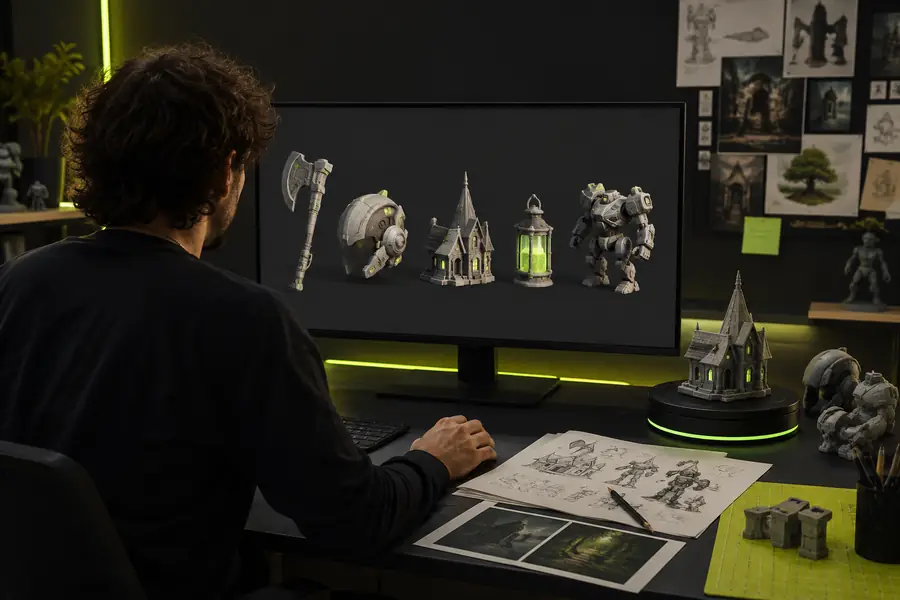
The divider represents a workflow decision, not a promise of automatic perfection. Meshy AI can accelerate shape exploration, but you should still check scale, mesh density, hidden geometry, texture seams, naming, and whether the asset fits the target engine or renderer.
Simple operating loop
The strongest results usually come from a short loop: define the visual target, compare useful variations, then refine only the direction worth keeping.
Start with the subject, material, shape language, viewpoint, and intended mood. A focused prompt gives Meshy AI a clearer design brief than a list of disconnected adjectives.
Generate options, review the silhouette and major details, and discard attractive results that do not match the intended use. Reference images help anchor the visual direction.
Choose the strongest result, make targeted adjustments, and export or continue the work in a more specialized tool when topology, rigging, or exact dimensions matter.
Workflow snapshot
These figures describe practical checkpoints for an online generation session rather than guaranteed output. They help frame where the tool adds the most value.